How to Do Subscript in Google Docs, Sheets, and Slides
If you’re typing a chemistry formula like H₂O, CO₂, or an indexed variable like x₁, you’ll need to place certain characters below the normal text line. Google Docs has a built-in subscript option, while Google Sheets and Slides use different methods.
Here’s how to add subscripts in each app quickly and correctly.
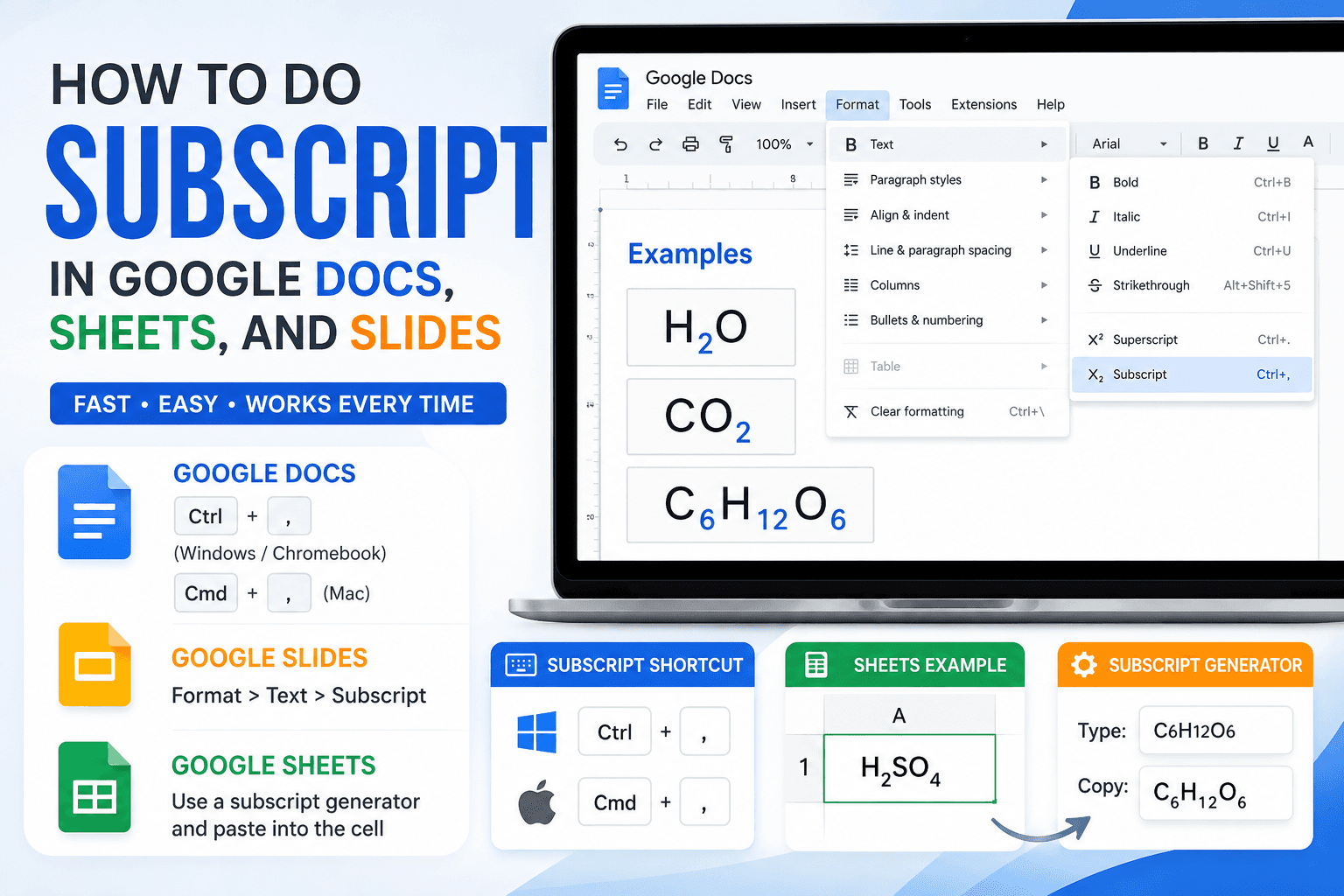
#Subscript Shortcut in Google Docs
Google Docs has a simple keyboard shortcut for subscript, and it works the same on any document.
##Google Docs Shortcut Key
##Using the Format Menu Instead
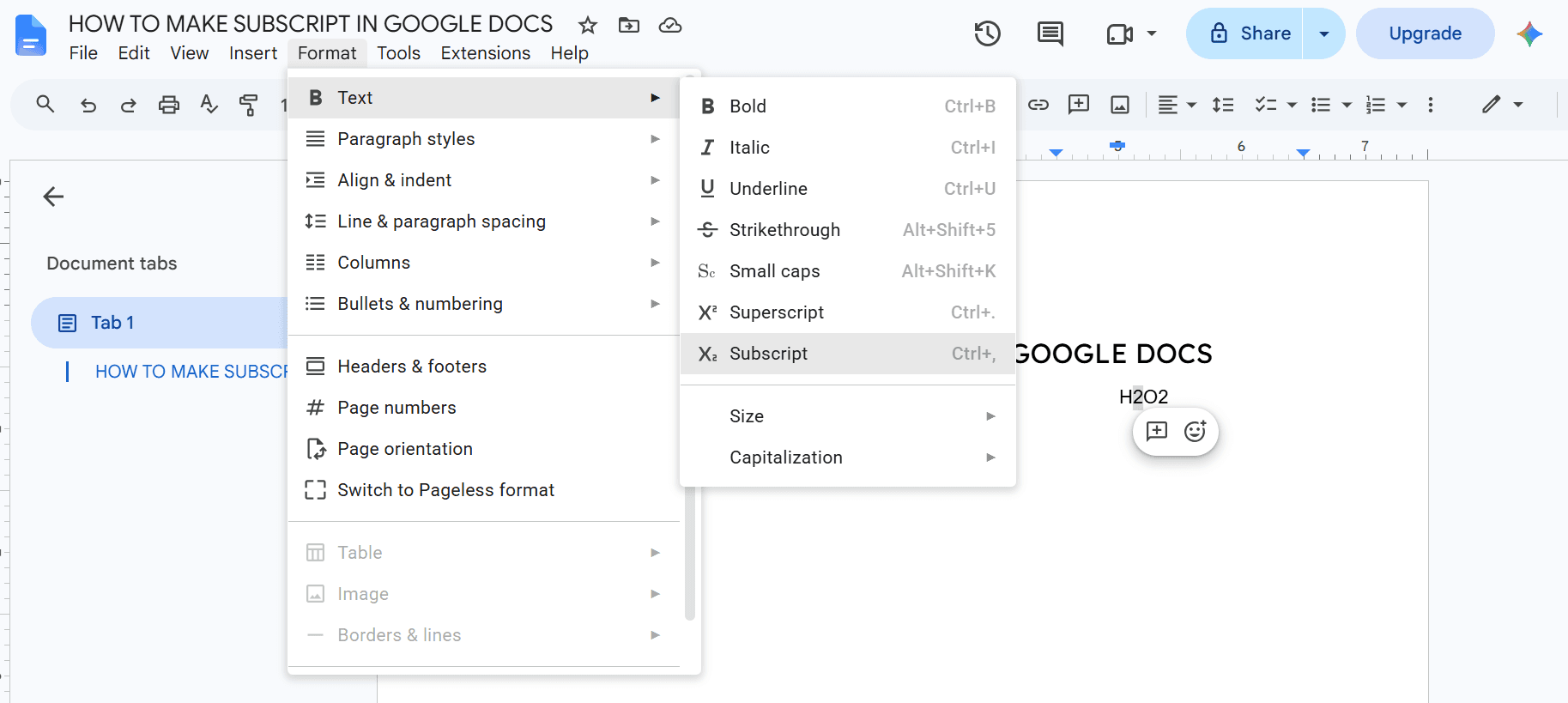
#How to Subscript Just Part of a Word
A lot of formulas only need one character changed, like the "2" in H2O. Here's the easy way to do it:
This same method works for longer formulas too, like C6H12O6, where you're switching between normal text and subscript more than once.
#Subscript in Google Docs on Mac
The shortcut on Mac is almost the same as Windows, just swap Ctrl for Cmd.
If the shortcut doesn't respond, it's usually because another Mac shortcut is using the same keys. The Format menu will still work no matter what.
##Mac Shortcut Key
#Subscript in Google Slides
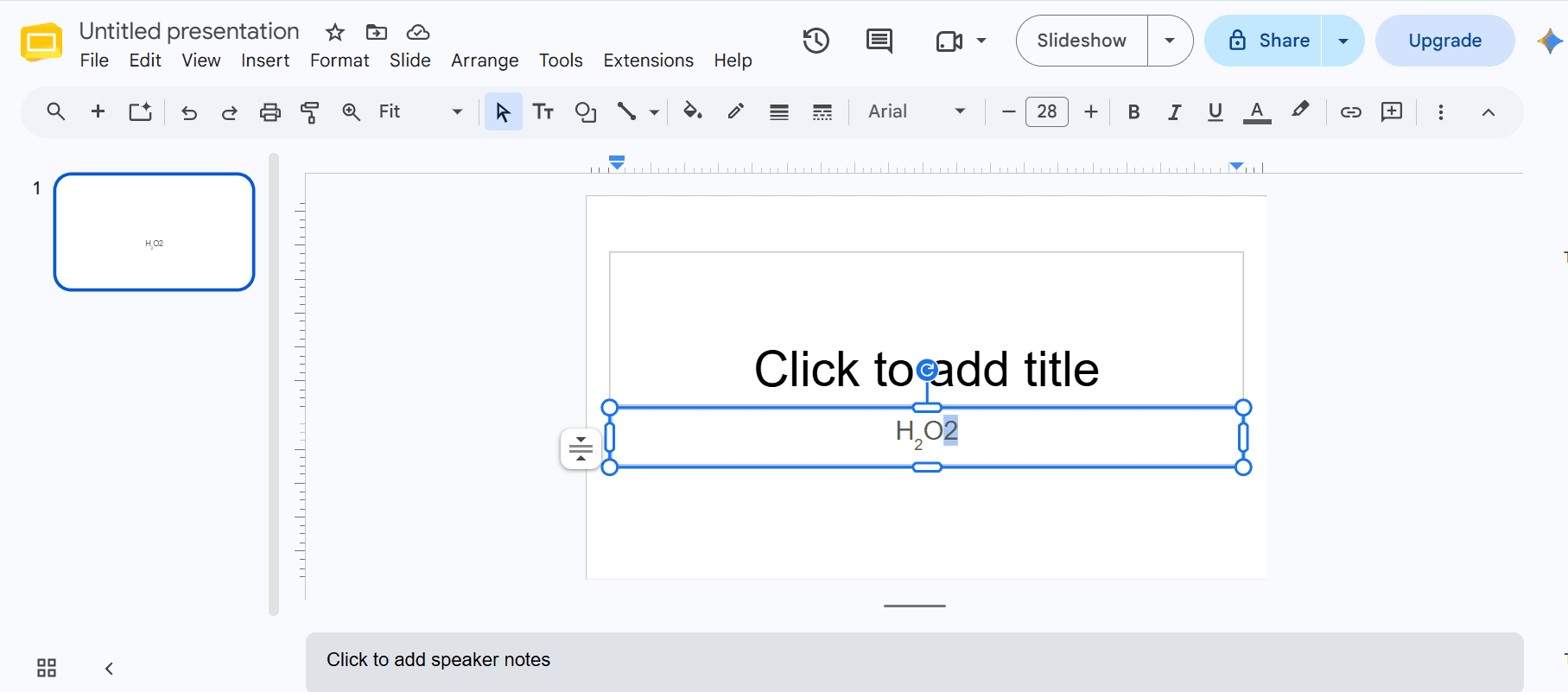
Google Slides doesn't have the same keyboard shortcut as Docs, but you can still add subscripts.
##Using the Format Menu in Slides
##A Quicker Option
#Subscript in Google Sheets
Sheets doesn't have a direct subscript button the way Docs and Slides do. To type your formula you can use a special subscript characters generator instead of relying on formatting.
You can get these characters from our subscript generator too, then just paste them straight into the cell. Since they're regular Unicode characters, they'll display correctly without needing any special formatting turned on.
#Using a Subscript Generator
If you ever need subscript text somewhere that doesn't support real formatting, like Sheets, an email, or a chat app, then you can use our subscript generator for free.
Type your text into the generator, copy the converted result, and paste it wherever you need it. You can use our subscript generator for free, no sign-up needed, it works for chemistry formulas, indexed variables, or anything else you're trying to format outside of Docs.
#Frequently Asked Questions
#Conclusion
Google Docs makes adding subscripts simple with the Ctrl+, (Cmd+, on Mac) keyboard shortcut and the Format > Text > Subscript menu. Google Slides provides the same formatting under its Format menu, while Google Sheets is easiest to format using Unicode subscript characters from our free Subscript Generator.
Whether you are writing chemical equations, math indices, or footnote references, you now have the tools and shortcuts to format subscripts accurately across the entire Google Workspace suite.
Try the Live Subscript Converter
Convert plain text, mathematical variables, and chemical formulas to real Unicode subscripts instantly with one-click copy.